
How to Banish Lag and Stuttering in Wuthering Waves: A 2026 Tune-Up Guide
Eliminate Wuthering Waves stuttering and lag with these proven graphics tweaks: disable DLSS, V-Sync, and optimize shadows for smooth 2026 gameplay.
When the world of Solaris-3 beckons with its vibrant vistas and pulse-pounding combat, few things can ruin the experience faster than stuttering frames and input lag. Since launch, Wuthering Waves has charmed players with its fluid action, yet performance hiccups occasionally sneak through, especially after major content updates. Many of these problems trace back to server-side wrinkles, but a surprising number of fixes lie right in your own settings panels. This guide walks through the most effective tweaks to banish lag and stuttering, blending classic solutions with fresh 2026 optimizations.

🔧 The Holy Trinity of Graphics Toggles
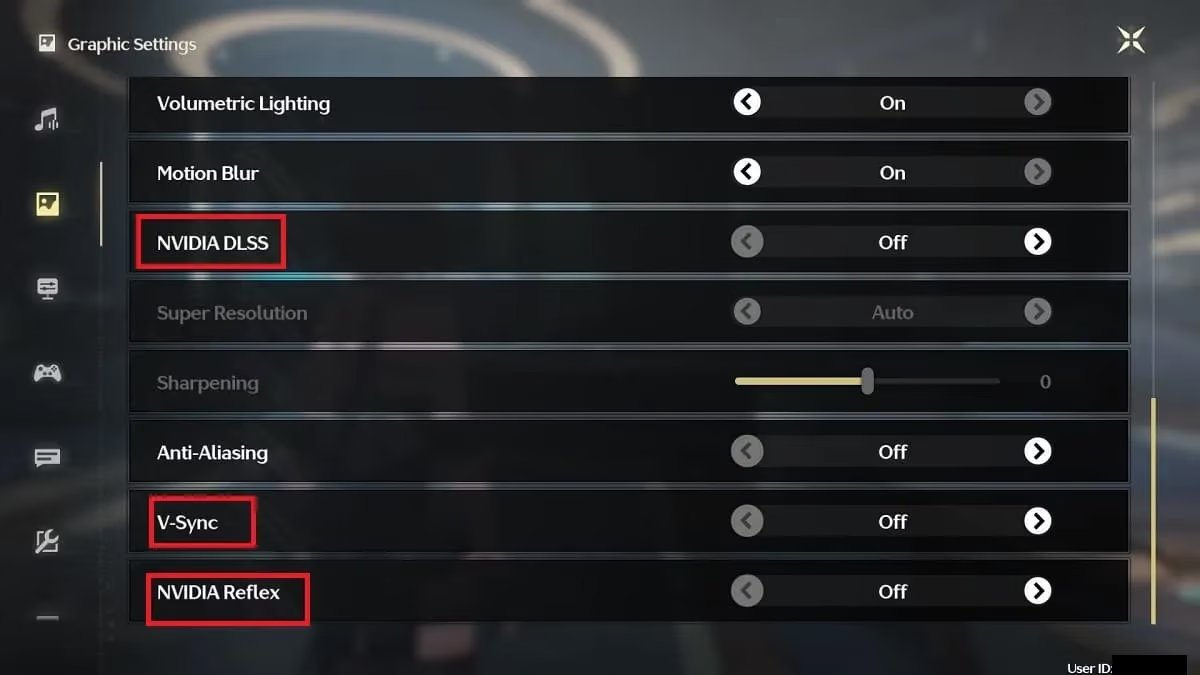
Before diving into heavy modifications, experiment with three specific switches that often serve as the secret sauce for smooth gameplay. Open the Settings menu, navigate to Graphic Settings, and locate the NVIDIA DLSS, V-Sync, and Nvidia Reflex options. Toggling these off can dramatically reduce micro-stutter and command delay. DLSS, while brilliant at boosting frame rates, sometimes introduces frame-pacing inconsistencies on certain hardware configurations. V-Sync eliminates screen tearing but can add input latency, and Reflex may fight against your system’s natural rhythm in this particular title. Many seasoned players also recommend disabling Anti-Aliasing — its impact is subtler than the other three, but every millisecond of frame time counts. In 2026, the introduction of NVIDIA’s latest driver updates has improved DLSS stability, yet for Wuthering Waves specifically, running without these enhancements still yields the most consistent experience.
🖼️ Trim the Visual Fat
Dialing back graphic fidelity isn’t about sacrificing beauty — it’s about trading a few particles for rock-solid performance. Inside the same Graphic Settings menu, pay special attention to Shadow Quality, Special Effects, Motion Blur, and Fog. Shadows and effects eat up GPU compute resources, while motion blur and fog add post-processing overhead. Lower these to medium or low, and you’ll often see frame times tighten up, especially in chaotic multi-enemy encounters or open-field exploration areas like the new Port City of Guixu. Even high-end rigs benefit from a slight reduction in these settings because Wuthering Waves’ artistic direction remains stunning without maxed-out sliders. If you’re still chasing frames, also consider lowering Render Resolution slightly — 90% scale often looks nearly identical while freeing up valuable headroom.
🖥️ Go Full Screen, Not Windowed
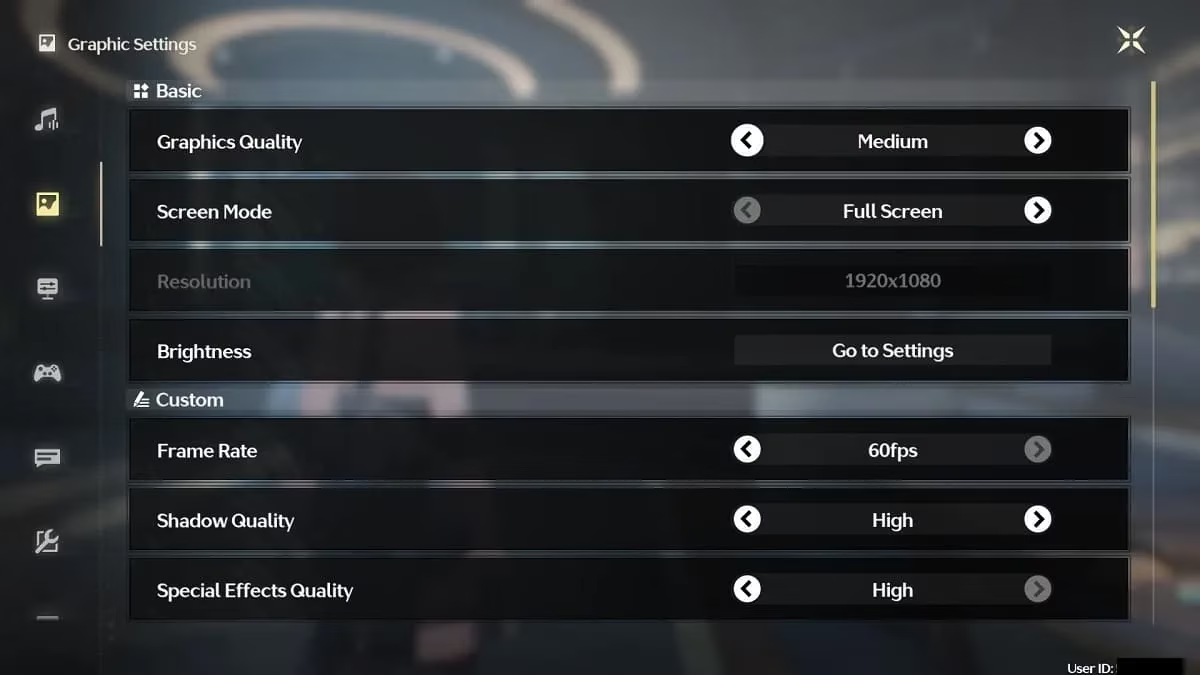
It might seem trivial, but the display mode can make or break your session. In the Graphic Settings, scroll to Screen Mode and select Full Screen instead of Windowed or Borderless Windowed. Windowed modes force the desktop compositor to stay active, introducing an extra step in the rendering pipeline that can cause micro-jitter and increased input lag. On Windows 11 2026 Edition, this effect is even more pronounced due to the enhanced desktop effects. Full Screen hands exclusive control to the game, streamlining the path from GPU to monitor. Yes, alt-tabbing becomes a bit clunkier, but the payoff in motion smoothness is undeniable. Some players also report that pairing Full Screen with Hardware-accelerated GPU scheduling disabled in Windows Graphics settings further stabilizes frame delivery.
🚀 Beyond In-Game Settings: System and Network Care
As of 2026, Wuthering Waves has received multiple engine optimizations, yet external factors still play a major role. Start with the classic drill: slap on the latest GPU drivers. For NVIDIA users, the GeForce Experience or the new NVIDIA App now includes a one-click optimizer for Wuthering Waves that automatically applies community-vetted settings. AMD Adrenalin Edition similarly offers a game profile. If you’re running Intel Arc or integrated graphics, ensure both your driver and Windows updates are fully installed — Intel’s recent Alchemist+ driver optimizations have noticeably improved DirectX 12 titles like this one.
Network lag mimics graphical stuttering, so run a quick check on your connection. Switch to a wired Ethernet cable if possible, or position your Wi-Fi router closer. Inside the game, the built-in network indicators (added in version 2.1) can help distinguish between client-side hitches and server lag. If you spot high ping, consider using a gaming VPN to route through less congested nodes, a trick that has become popular among the community.
Another underutilized tool is Windows Game Mode, now smarter in the 2026 update. It throttles background processes and gives the game priority on both CPU and disk I/O. Also, disable any overlay software — Discord, Steam, and even the new Windows Game Bar 3.0 overlays can siphon resources. Finally, navigate to your graphics card control panel and set Power Management Mode to “Prefer Maximum Performance” for Wuthering Waves specifically. This prevents the GPU from downclocking during less demanding scenes, which often triggers stutter when action spikes again.
📋 Quick Checklist for a Stutter-Free Rover Adventure
| Action | Why It Helps |
|---|---|
| Turn off DLSS, V-Sync, Reflex | Eliminates frame pacing issues and input lag |
| Lower shadows, effects, motion blur, fog | Frees up GPU and reduces post-processing load |
| Set Screen Mode to Full Screen | Avoids desktop compositor interference |
| Update GPU drivers + Windows | Gets latest optimizations and bug fixes |
| Enable Game Mode + disable overlays | Prioritizes game resources |
| Use high-performance power plan | Keeps GPU clocks stable |
| Check ping and switch to wired | Rules out network-induced stutters |
By mixing these in-game tweaks with a sprinkle of system TLC, you can transform a halting slideshow into a buttery-smooth odyssey through the waves. While official patches continue to refine the server-side code, the player-side adjustments remain your first line of defense. Tinker, test, and tailor — and soon you’ll be parrying bosses and collecting echoes without a single hiccup.
Comments